
The difference between an app that feels "okay" and one that feels like it belongs on an iPhone is often a handful of small details: a haptic tap, a smooth number change, a polished empty state.
iOS 17 added SwiftUI APIs that make these details one line of code. Here are twelve I use in every app, each with an example you can paste in.
TL;DR: if you only add four, add ContentUnavailableView, sensoryFeedback, numericText and paging scroll views. They change how the app looks and feels the most for the least code.
Building on Windows? Every example works with the workflow from Build iOS Apps on Windows Without a Mac.
1. @Observable instead of ObservableObject
The Observation framework removes the boilerplate of @Published and @StateObject, and views only update when a property they actually read changes.
import Observation
import SwiftUI

@Observable
final class CartModel {
    var items: [String] = []
    var total: Double = 0
}

struct CartView: View {
    @State private var cart = CartModel()

    var body: some View {
        Text("\(cart.items.count) items")
    }
}
Use @State to own the model and @Bindable when a child view needs bindings to it.
2. Paging scroll views in one line
Turn any horizontal ScrollView into a smooth, snapping carousel:
ScrollView(.horizontal) {
    LazyHStack(spacing: 16) {
        ForEach(cards) { card in
            CardView(card: card)
                .containerRelativeFrame(.horizontal)   // each card is one screen wide
        }
    }
    .scrollTargetLayout()
}
.scrollTargetBehavior(.paging)
Use .viewAligned instead of .paging to snap to each item rather than to full pages.
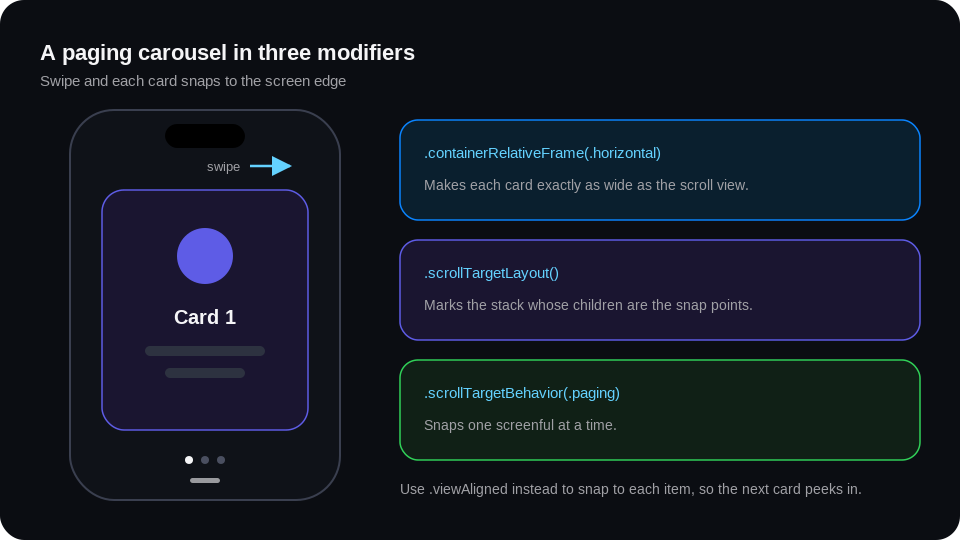 Three modifiers turn a horizontal ScrollView into a snapping carousel.
3. Scroll transitions for depth
Fade and scale items as they enter and leave the screen:
CardView(card: card)
    .scrollTransition { content, phase in
        content
            .opacity(phase.isIdentity ? 1 : 0.4)
            .scaleEffect(phase.isIdentity ? 1 : 0.92)
    }
4. ContentUnavailableView for empty states
Don't leave a blank screen when a list is empty or a search finds nothing:
if results.isEmpty {
ContentUnavailableView.search(text: query)
}
// Or a custom one
ContentUnavailableView(
"No notes yet",
systemImage: "note.text",
description: Text("Tap + to write your first note.")
)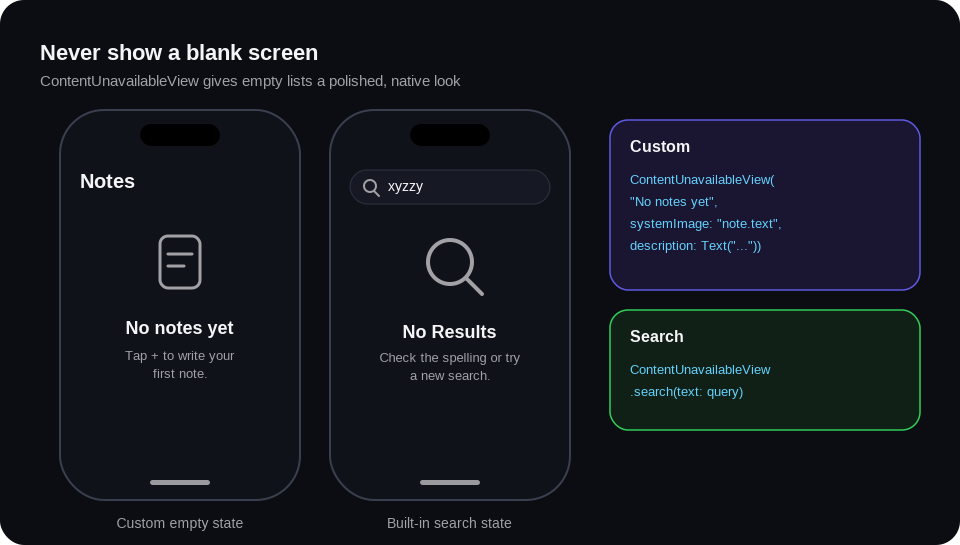 A custom empty state and the built-in search state, with the code for each.
5. Haptics with sensoryFeedback
Add the right haptic when something happens, with no UIKit code:
Button("Save") { saved.toggle() }
    .sensoryFeedback(.success, trigger: saved)
Other options include .selection, .impact, .warning and .error. Use haptics for meaningful moments, not every tap.
6. Animated SF Symbols with symbolEffect
Image(systemName: "wifi")
    .symbolEffect(.variableColor.iterative, isActive: isSearching)

Image(systemName: "bell")
    .symbolEffect(.bounce, value: notificationCount)
The bell bounces every time notificationCount changes. It's a tiny touch that makes the app feel alive.
7. Smoothly changing numbers
Make counters and prices roll instead of jumping:
Text(score, format: .number)
.contentTransition(.numericText(value: Double(score)))
.animation(.snappy, value: score)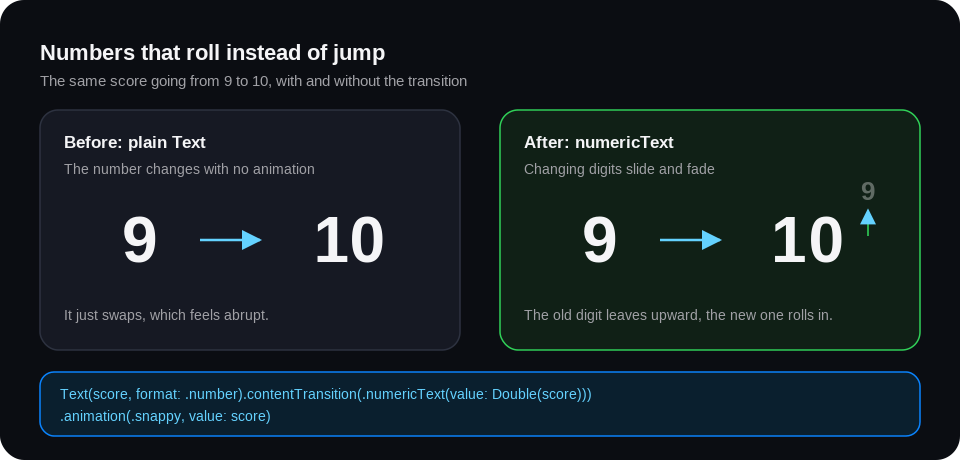 The same score change with and without contentTransition numericText.
8. The #Preview macro
Previews are shorter and can include several states:
#Preview("Empty") {
    NotesList(notes: [])
}

#Preview("With notes") {
    NotesList(notes: Note.samples)
}
Previews need Xcode on a Mac. If you build from Windows, they're still useful the day you or a teammate opens the project on a Mac, and they cost nothing to keep.
9. SwiftData for local storage
Save data locally with a few annotations instead of a Core Data stack:
import SwiftData

@Model
final class Note {
    var text: String
    var createdAt: Date

    init(text: String, createdAt: Date = .now) {
        self.text = text
        self.createdAt = createdAt
    }
}

@main
struct NotesApp: App {
    var body: some Scene {
        WindowGroup { NotesList() }
            .modelContainer(for: Note.self)
    }
}

struct NotesList: View {
    @Query(sort: \Note.createdAt, order: .reverse) private var notes: [Note]
    @Environment(\.modelContext) private var context

    var body: some View {
        List(notes) { note in Text(note.text) }
        Button("Add") { context.insert(Note(text: "New note")) }
    }
}
10. TipKit for onboarding hints
Show a helpful tip once, the way Apple's own apps do:
import TipKit

struct FavoriteTip: Tip {
    var title: Text { Text("Save your favorites") }
    var message: Text? { Text("Tap the star to find this event later.") }
}

struct EventView: View {
    private let tip = FavoriteTip()

    var body: some View {
        Image(systemName: "star")
            .popoverTip(tip)
    }
}
Call try? Tips.configure() once when the app starts.
11. Inspector for side panels
On iPad and larger screens, inspector shows a trailing panel. On iPhone it becomes a sheet automatically:
NotesList()
    .inspector(isPresented: $showDetails) {
        NoteDetails(note: selected)
    }
12. The new onChange
iOS 17's onChange gives you both the old and the new value:
.onChange(of: query) { oldValue, newValue in
    if newValue.count >= 3 { search(newValue) }
}
Small habits that make apps feel native
- Use system fonts and Dynamic Type.
.font(.title)instead of fixed sizes respects the user's text size. - Support dark mode by default. Use semantic colors like
.primaryand.secondary. - Respect Reduce Motion. Read
@Environment(\.accessibilityReduceMotion)and tone down animations. - Label icon-only buttons. Add
.accessibilityLabel("Delete")so VoiceOver users know what they do.
Key takeaways
- iOS 17 turned many "polish" details into one modifier.
@Observable, paging scroll views,ContentUnavailableView,sensoryFeedbackand numeric text transitions give the biggest visible improvement for the least code.- SwiftData and TipKit handle storage and onboarding without heavy setup.
Ready to connect your app to a backend? Read Call a Serverless API from SwiftUI with async/await.
Found this useful?
Share it with your group